How to sort photos by location on Windows
You have a folder of a few hundred, or a few thousand, photos from a trip or a job, and you want them in one folder per place: the beach, the old town, the hotel, the viewpoint. Your phone already knows where each one was taken. Windows just doesn't offer to use that.
This guide covers what Windows can and can't do on its own, how to sort by place by hand when you only have a handful of photos, and how to do it in a couple of minutes with Location Sorter when you have many.
Where the location comes from
Almost every phone, and many cameras, write the GPS position into each photo when it is taken. It sits inside the file, in the photo's EXIF data, next to the date and the camera model. Nothing has to be uploaded for it to be there, and it stays in the file when you copy it to your PC.
Two things remove it:
- Location turned off for the camera. On an iPhone that is Settings → Privacy & Security → Location Services → Camera. On Android it is a setting in the camera app itself.
- Sharing through some apps. Messaging and social apps often strip the position before they send a photo. A photo you received that way usually has no location, even if the original did.
Photos copied straight off the phone with a cable, or synced through OneDrive, iCloud, Google Drive or Dropbox, keep it.
What Windows can do on its own
See one photo's position. Right-click a photo in File Explorer, choose Properties, open the Details tab and scroll to GPS. You'll see the latitude and longitude in degrees, minutes and seconds. That tells you a photo has a position, but you would have to type the numbers into a map to find out where it is. Our guide on how to see where a photo was taken has the details.
Group by date, not by place. File Explorer can group and sort a folder by Date taken, which is often the next best thing: a day's photos usually come from a few places. But it has no column for the place a photo was taken, so it can't group or sort by it.
Show places in an online library. Google Photos and Apple's Photos can show your pictures on a map and search them by city. That helps you find a photo, but it doesn't put your files into folders on your PC. If you want the folders, for a client, a backup or an editing project, you still have to make them yourself.
Sorting by place by hand
For a few dozen photos, doing it by hand is fine:
- Make a folder for each place you remember, inside the folder of photos.
- Open the folder in File Explorer with View → Large icons so you can see what each photo shows.
- Select the photos of one place (hold Ctrl and click), drag them into its folder, and repeat.
- For photos you can't place by eye, check Properties → Details → GPS and look the position up on a map.
It works, but it gets slow quickly. Similar-looking streets, beaches or rooms are hard to tell apart from thumbnails, and every photo you can't recognise means a trip to the map. For a few hundred photos from a busy week, it is an evening's work.
The quick way: Location Sorter
Location Sorter is a Windows app that does this sorting for you, from the GPS already in your photos. It runs on your PC: there is no account and nothing is uploaded.
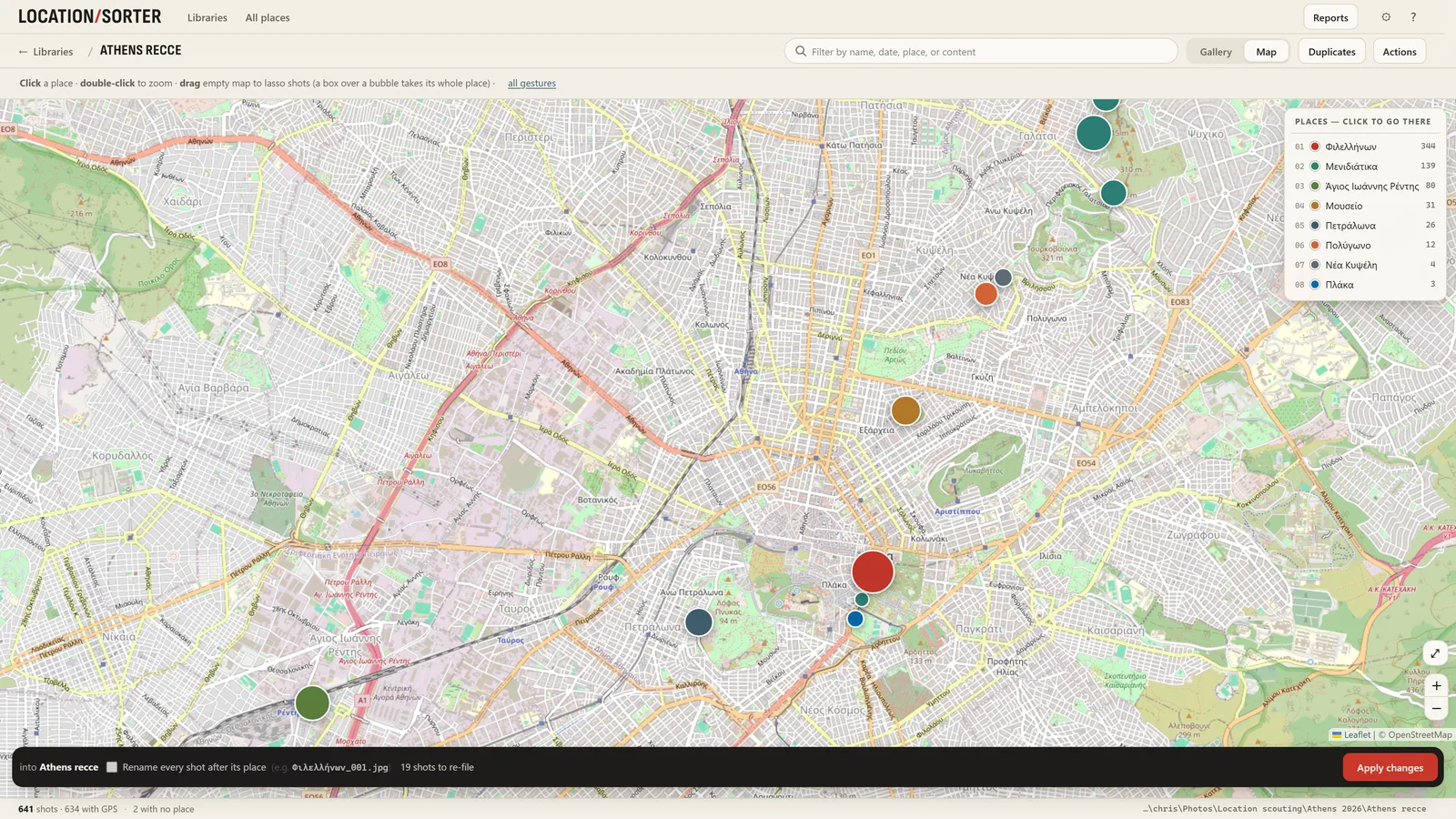
- Point it at a folder of photos. Choose Sort a folder of shots… and pick the folder from your phone or camera. It reads the GPS in every photo and clip.
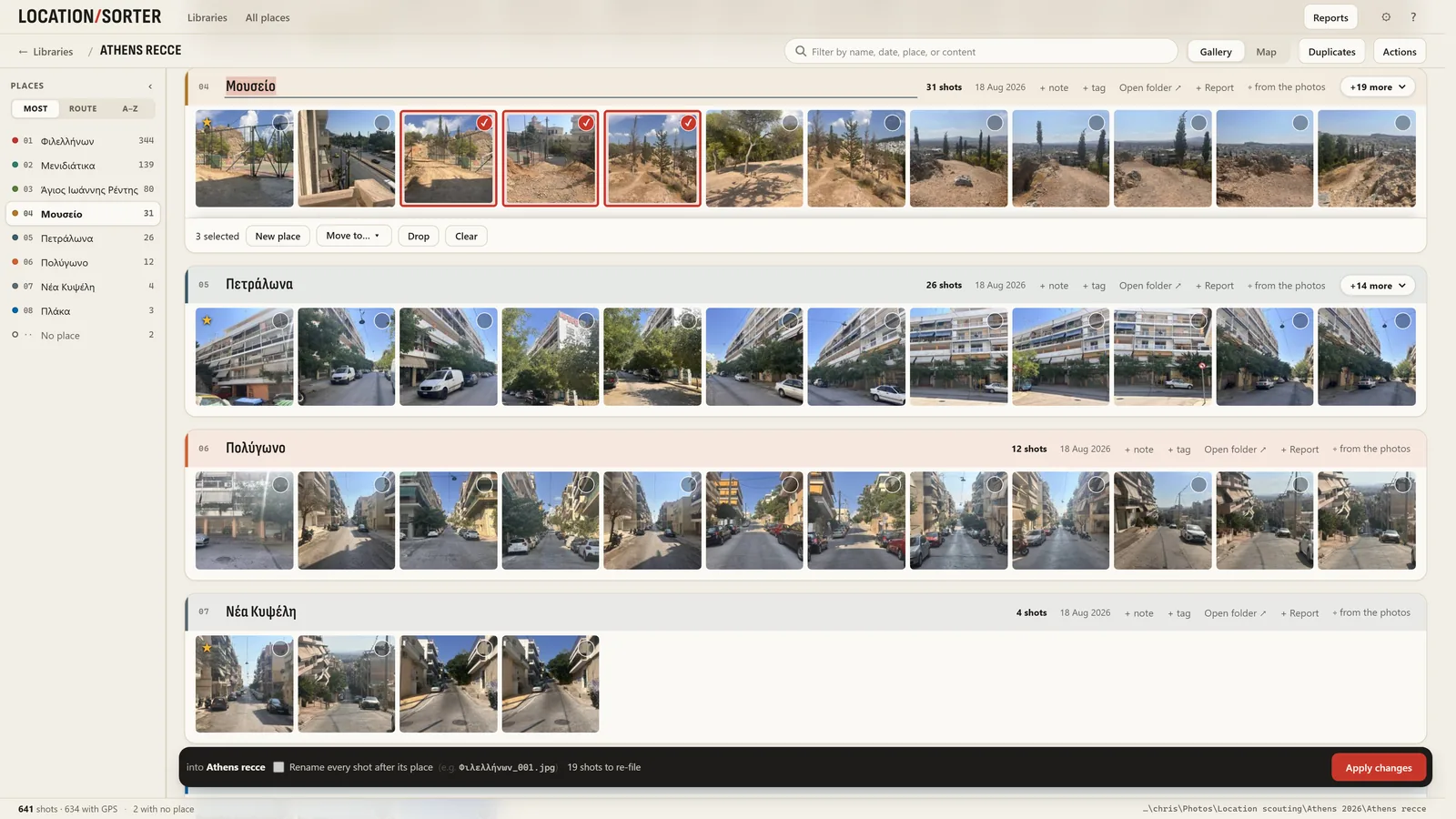
- Check the places on a map. Shots taken close together become one place, named from the map: a street, a neighbourhood, a landmark. You see every place as a pin and as a strip of its shots.
- Fix anything that's wrong. Rename a place, drag a shot into another place, or lasso a group on the map and move it. Shots with no GPS go to No place, and you can give them a position by hand.
- Apply. Only now does anything move. Each place becomes a folder, and the bar tells you how many shots it will re-file. If you change your mind, Put shots back (in Actions) returns every moved shot to where it came from.
It handles JPG, HEIC and PNG photos and MP4, MOV, M4V and 3GP clips, and works straight from OneDrive, Dropbox, Google Drive, iCloud or Nextcloud folders on your PC. Near-duplicates (ten frames of the same view) can be left out of the sort with one click; nothing is ever deleted.
Tips for a cleaner sort
- Sort a trip at a time. One folder per trip or job keeps the places meaningful. Location Sorter remembers each one as a library, so you can come back and add more later.
- Name places the way you'll look for them. The map's name is a starting point. "Hotel" or "Day 2 beach" may be what you'll search for in a year.
- Keep the originals' dates. Moving files into folders doesn't change their Date taken, so you can still sort each place's folder by date.
Location Sorter is free to try for 7 days, with every feature, from the Microsoft Store. After that it is €24.99, once.